Serviceable Planning
When you add up all your tasks, you likely end up with quite a long list. Many of these tasks are interconnected. With our new 'Dependencies' feature, we offer you a fantastic way to create connections between tasks. This makes it easier to plan and execute projects successfully—a planning tool that works for you.
What are Dependencies?
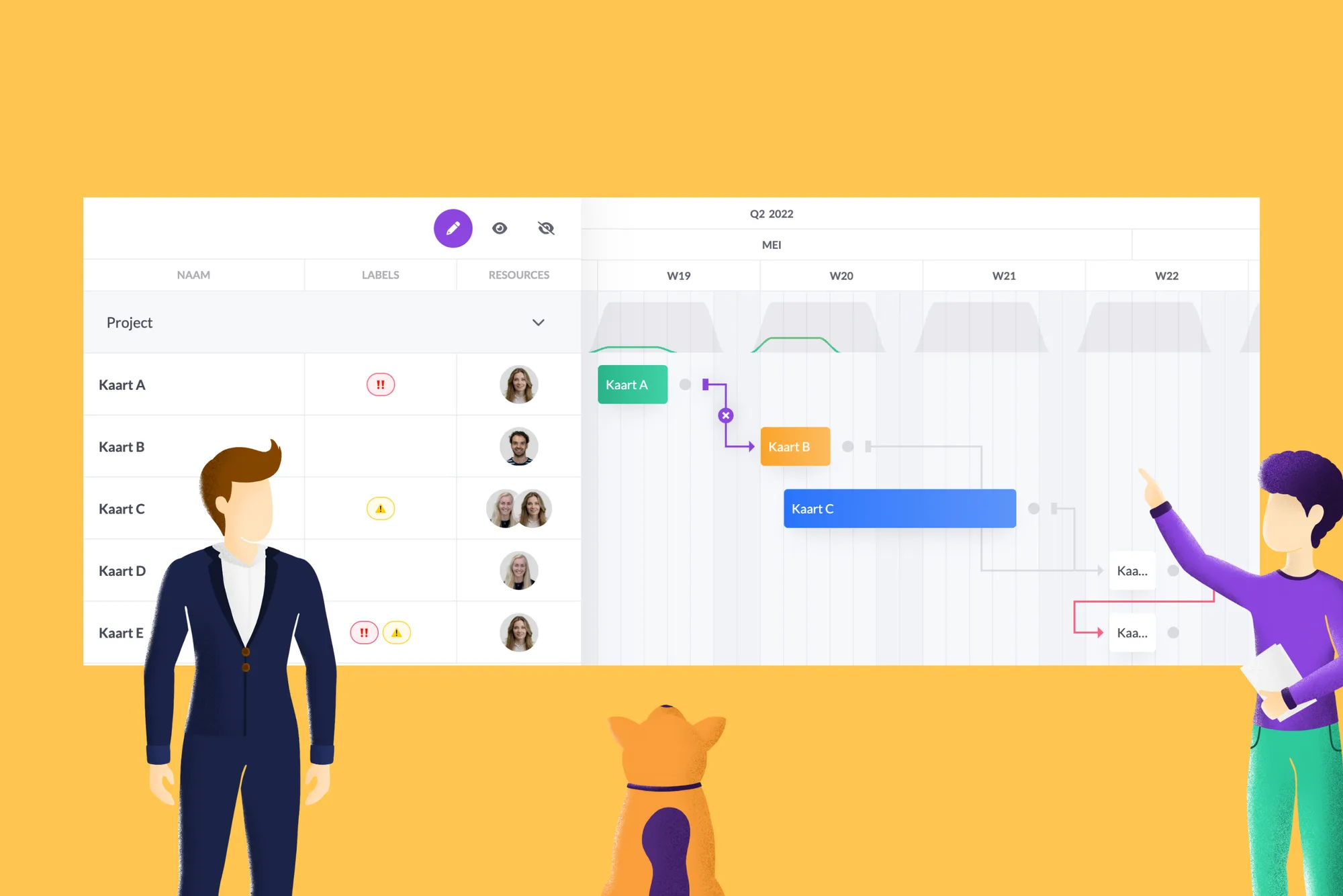
A dependency connects two cards. One card is dependent on the other, indicating when it should start or finish in relation to the other task. vPlan offers three types of dependencies, each with its own characteristics. Let's first show you how to create a dependency.
How to Create Dependencies in the Timeline?
Creating a dependency is done in the timeline view. When you hover over a card (bar), you'll find anchors in the top-left and bottom-right corners. From here, you can draw a dependency from Card A to Card B. The starting point is important, as it determines which card depends on the other.
Created dependencies are displayed as a line within the timeline. Alongside the line, you'll see an arrow to indicate this relationship. Now what? What happens with this relationship? In vPlan, you have three types of actions to choose from. We'll explain them below.
What Do Dependencies Do?
If Card A shifts and Card B is dependent on it, you can set what should happen in vPlan. vPlan offers three types of actions:
Notify
When the end of Card A is before the start of Card B, the line will turn red, notifying you that this might cause a problem. By placing Card B after Card A (or Card A before Card B), the notification disappears. You can resolve this manually.
Push
When the end of Card A is before the start of Card B, there’s no issue. But when the end of Card A is on the same day as the start of Card B, we push Card B to the side. This ensures that Card B always stays behind Card A. We only push, not pull, so when Card A is moved forward, Card B stays in place.
Keep
This setting locks the period between Card A and Card B when a dependency is set. If you move Card A in the schedule, Card B will automatically shift as well, maintaining the same gap between them.
👉🏻 Note: Once a dependency is set, the actions also apply in other views, such as the list, Kanban, and calendar.
💡 Tip: You can chain several cards with dependencies. This way, a change in the planned dates of one card will automatically propagate to all connected future cards.
Want to learn more about dependencies? Read more in our help center.
Get more flow in your planning with this great feature.
New Automation for Integrations 🦾
We’ve also developed a new automation specifically for our customers with an ERP integration. You can now specify whether certain types of orders (sales, project, purchase, production, quotes) should go into a specific backlog on a plan board. For example, if you have a planning board for your quotes, this automation ensures only quotes appear in the plan board backlog. Keep your backlog clean and organized with this new automation.
These developments are based on customer feedback. Do you have any great ideas for improving vPlan? We’d love to hear from you! You can also vote on ideas from other users. See you next time! 👋🏻
Try it in your own vPlan
Every new feature is in the free trial.