This update will be available from 9 October!
Work smarter with user teams
Want to give a whole group of users access to a planning board, share a view with them or tag everyone at once? Until now, you had to select users one by one. Now there’s an easier way: Teams.
With Teams, you can group users who belong together. For example, create a Work Preparation, Assembly or Amsterdam Branch team and add the relevant colleagues.
You can then use the entire team in different places throughout vPlan:
- Board permissions: give a complete team access to a planning board in one go;
- Tags: tag an entire team in a comment;
- Automations: send notifications from automations to a complete team;
- Views: share a view directly with a team.
This means you no longer have to select users one by one, making groups much easier to manage.
New custom field: User
A new custom field type is now available: User.
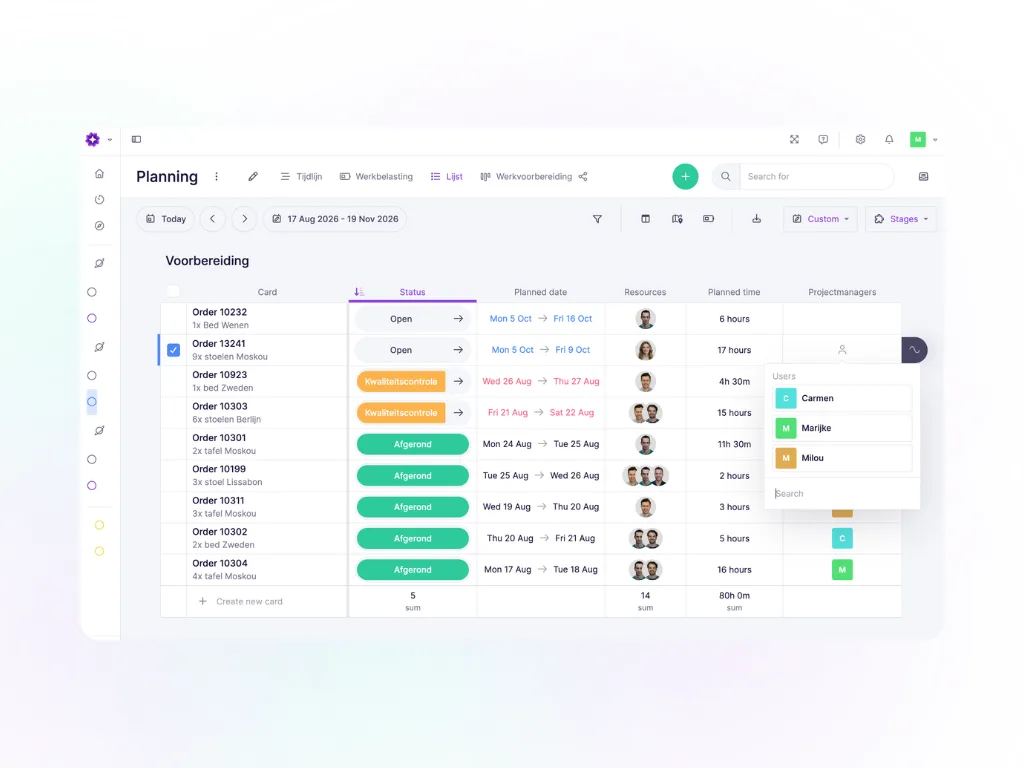
This allows you to link one or more users to a card. It’s useful for recording who is responsible, who the account manager is or who needs to carry out a review. You decide which users can be selected in the field.
This is also where the new user teams come in handy. For example, if you only want users from a specific team to be selectable, simply link that team to the custom field. This lets you limit the list to only the users who are relevant.
Set up your backlog your way
Until now, vPlan used a fixed backlog. With this update, you have more flexibility and can decide how you want to set up the backlog for your planning board.
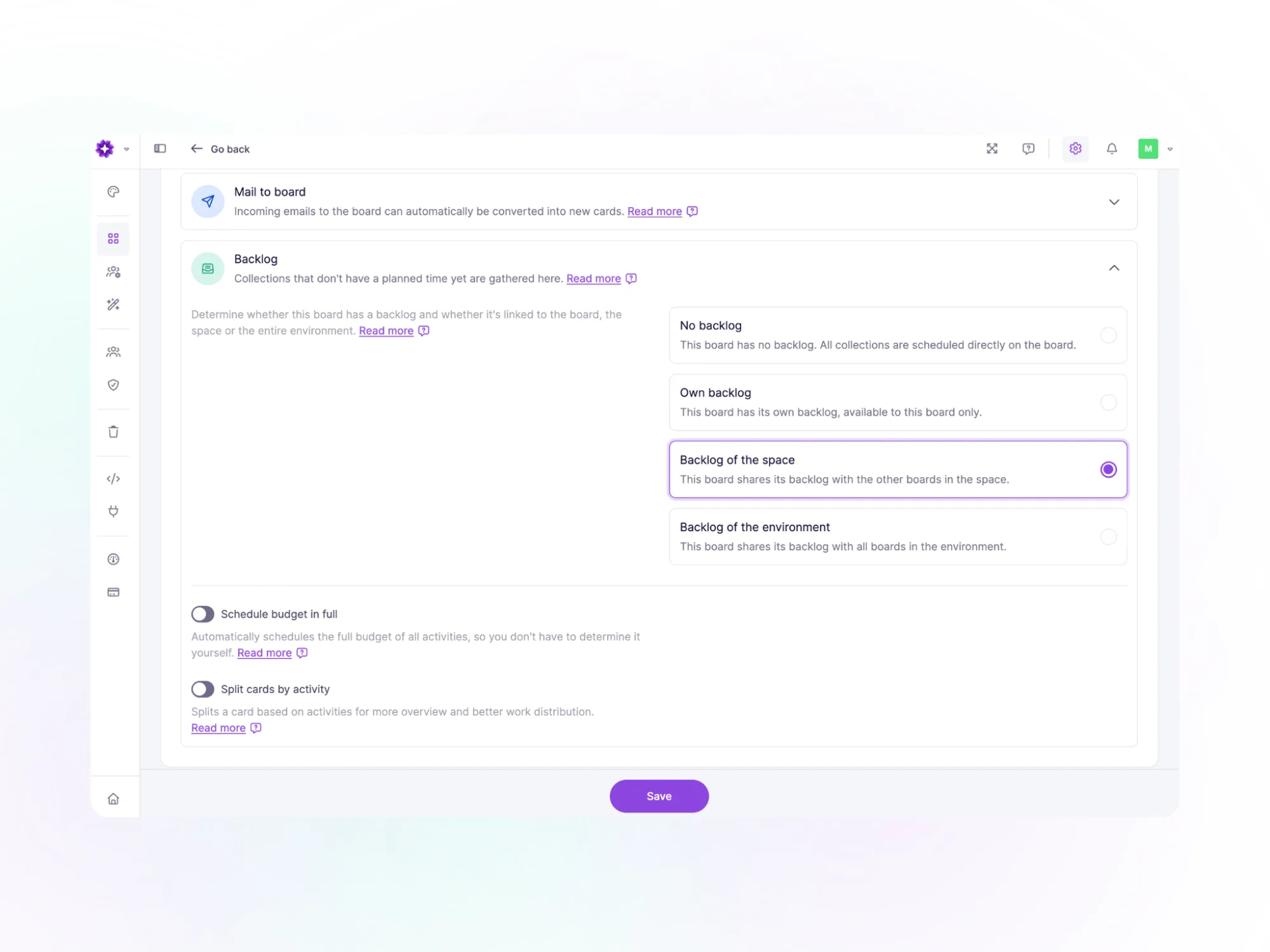
Alongside the existing backlog, you can now choose from several options:
- No backlog: work without a backlog if you simply don’t need one;
- Personal backlog: work with your own backlog;
- Backlog per workspace: keep work neatly separated by workspace;
- Environment backlog: work from one central backlog for your entire environment.
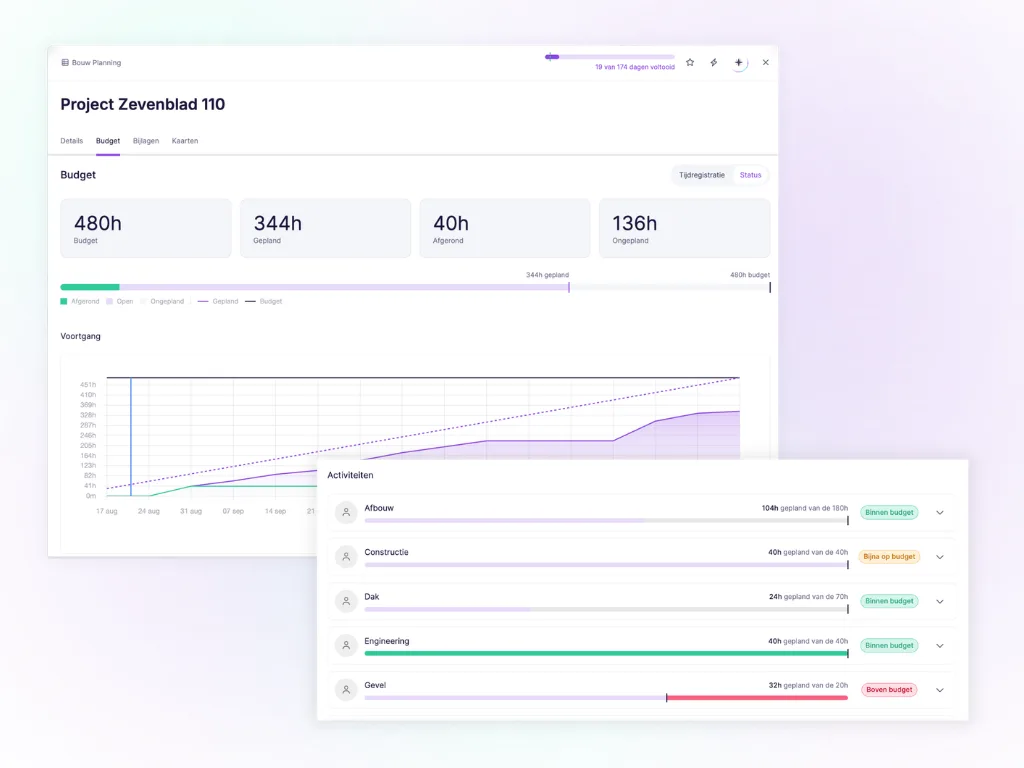
You also have more settings within the backlog itself. For example, you can choose not to schedule the entire pre-calculation immediately when planning a card from the backlog.
Imagine you have a long-running project with a budget of 1,000 hours. Instead of scheduling all 1,000 hours at once, you can choose to plan only part of the project. To do this, switch off the setting that schedules the full pre-calculation.
You can also decide whether cards from the backlog should be split by activity. This means you can configure your backlog to match the way you prefer to plan.
Prefer to keep working the way you already do? Then simply leave this option as it is and nothing changes. Scheduling the full budget is how vPlan has worked by default until now.
Workload now has its own view
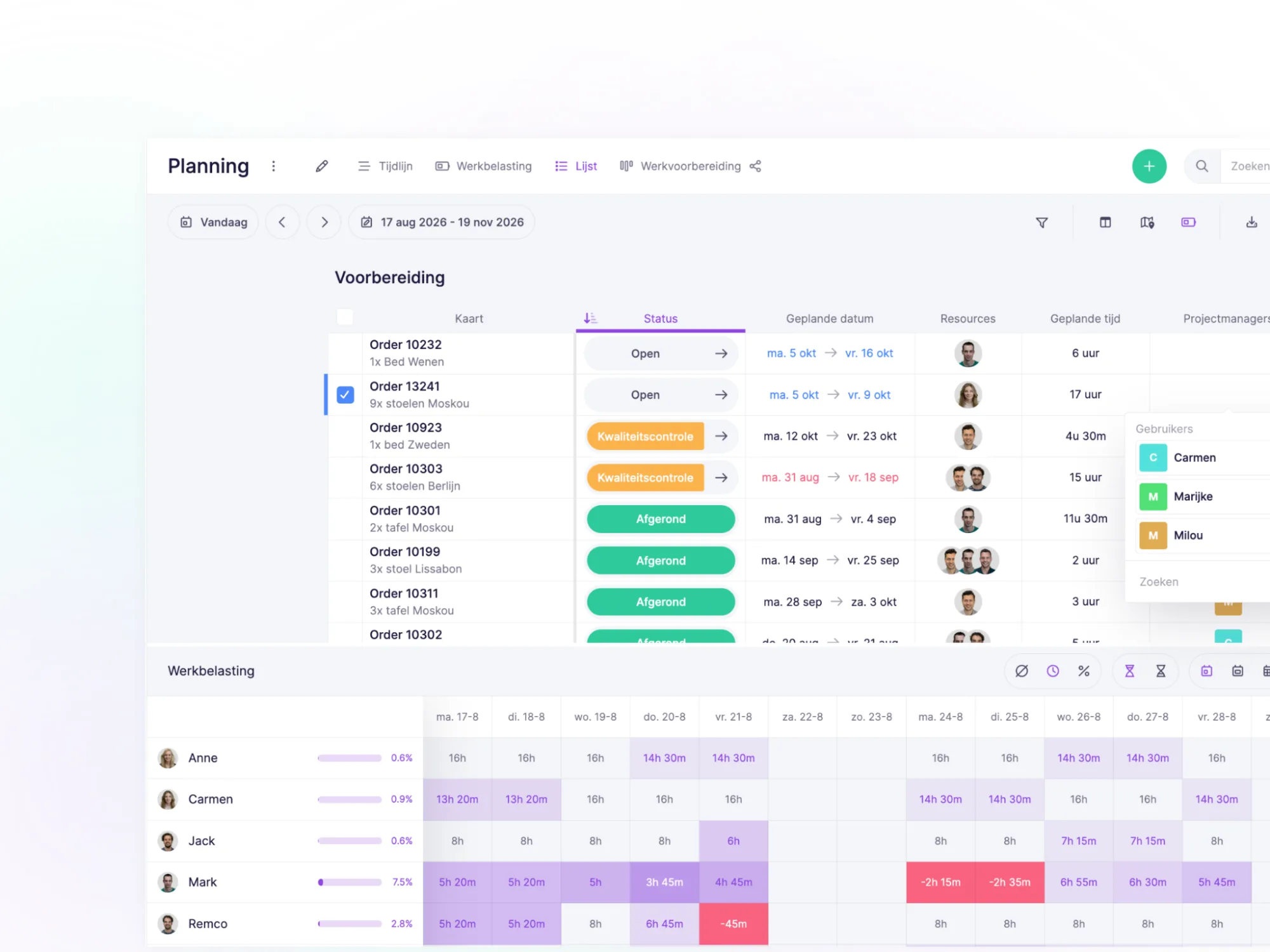
Want a quick overview of the workload for a specific team or department? You can now add workload as its own view to your planning board.
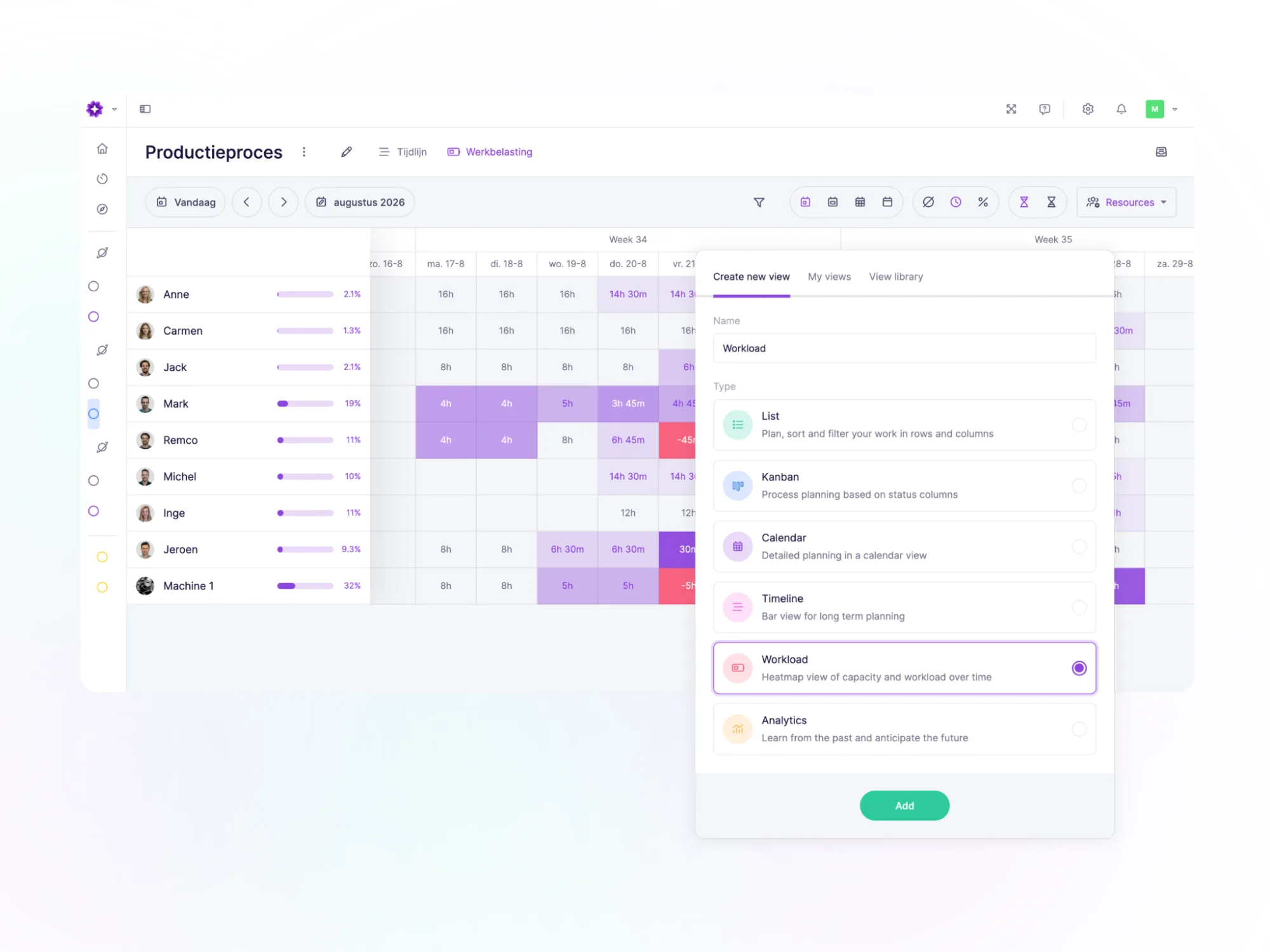
Just like with other views, you decide which filters to apply. For example, you can create a workload view for a specific team, department or only the activities that matter to you.
This gives you the capacity overview you need, right where you need it.
Workload in Kanban and list view
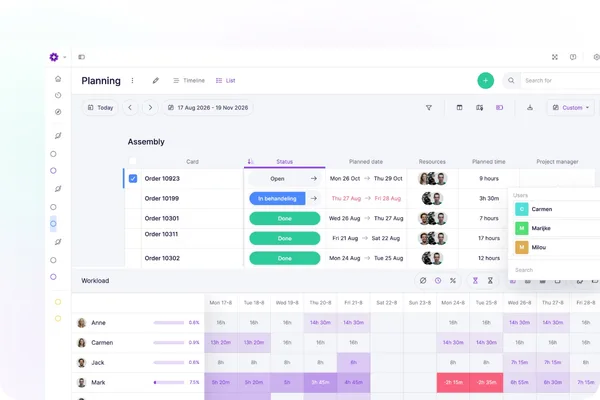
The workload split view is now available in more places too. You can open it from both the list view and Kanban view.
For example, if you want to add a resource to a card from the list view, you can open workload straight away. You’ll see how much capacity your resources still have available and can assign the right person to the card without switching views.
This keeps available capacity visible while you plan.
New automation for subcards
When you move a subcard to a different start or end date, you don’t want to manually redistribute the planned hours every time. That’s why we’ve added a new automation.
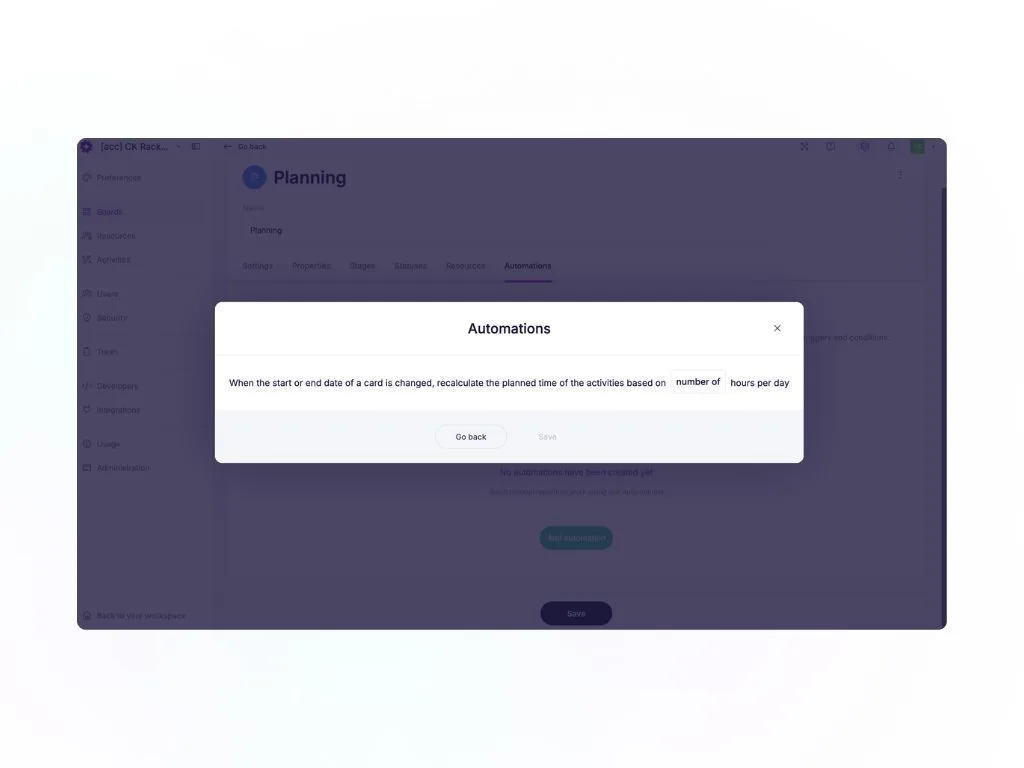
With this automation, vPlan can automatically recalculate the planned time for activities when the start or end date of a subcard changes.
You decide how many hours should be scheduled per day. If the schedule shifts, vPlan automatically redistributes the hours across the new period.
No more manual adjustments required.
Add cards directly from the collection view
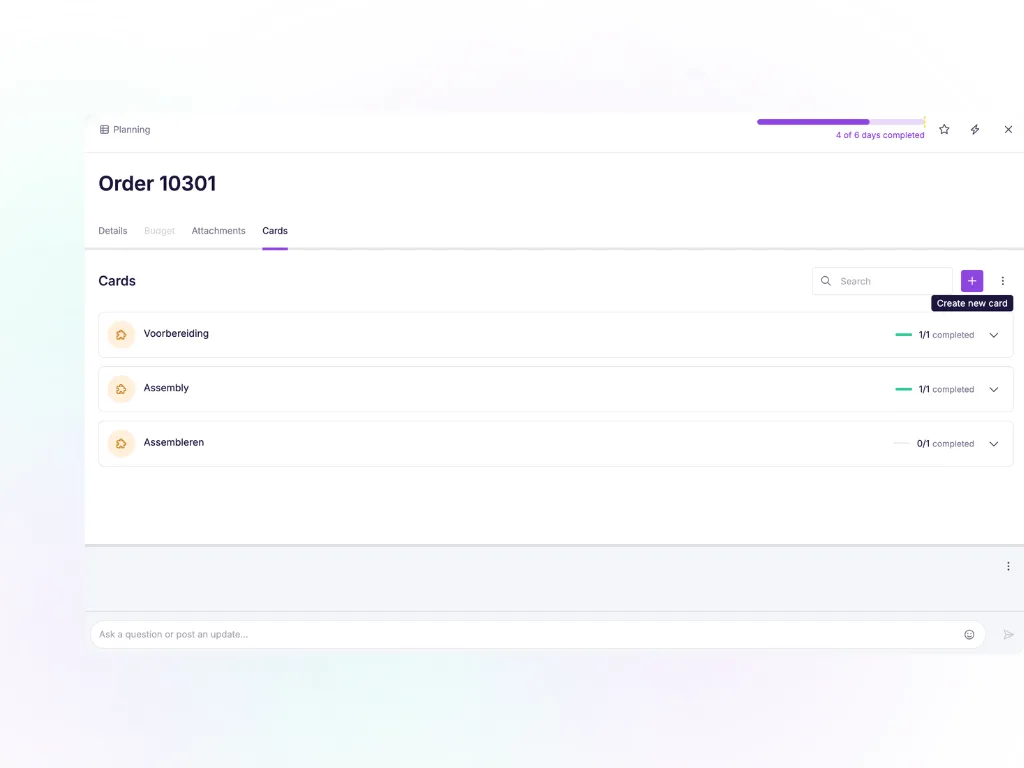
Do you work with collections a lot? You can now add a new card directly from a collection.
You’ll find the new option under the Cards tab in the collection view. This means you no longer have to leave the collection to create a card elsewhere, so you can carry on working without interruption.
Give vPlan your own colour
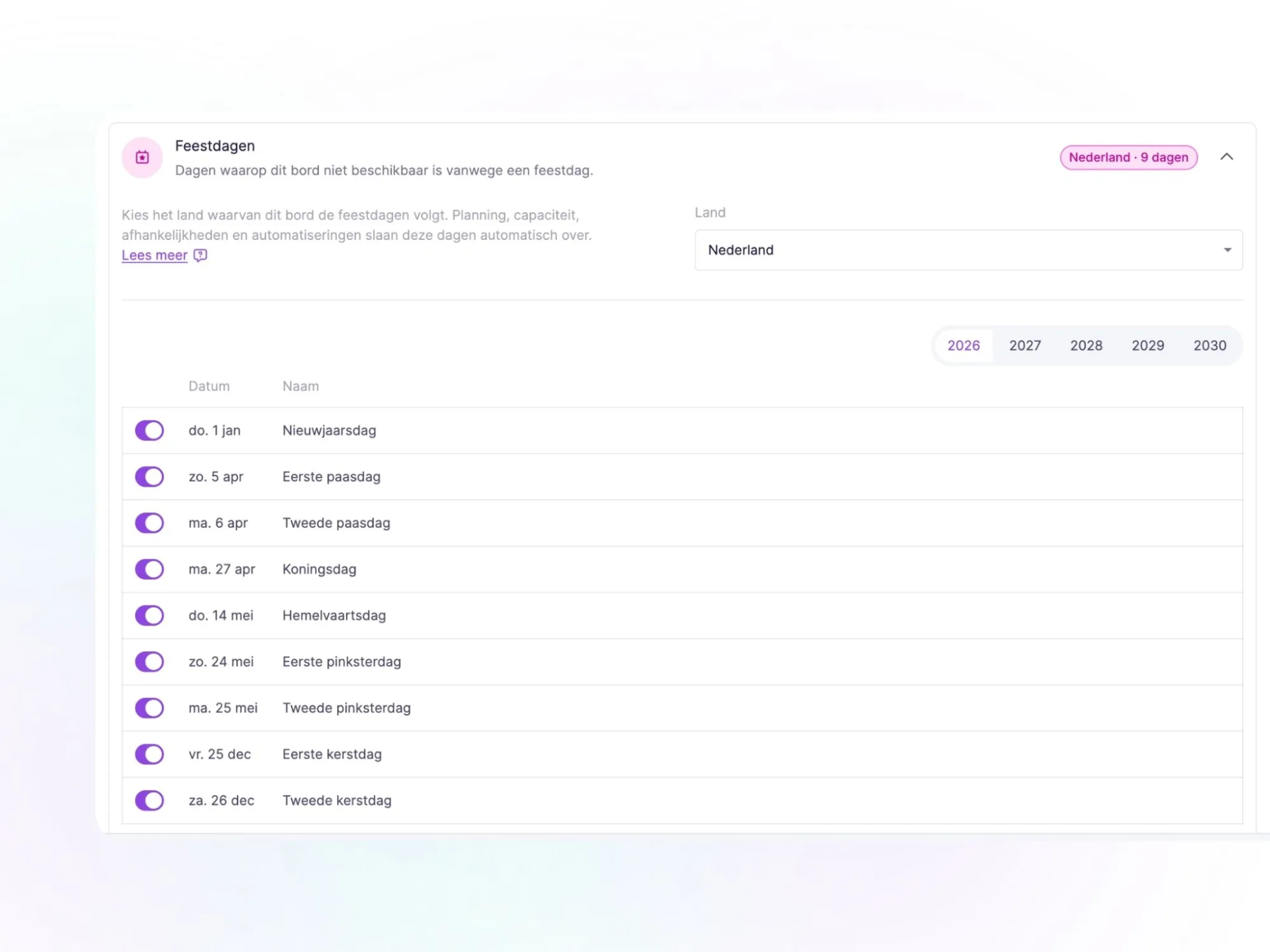
Give your vPlan environment a look that better matches your organisation. From the Professional plan onwards, you can set your own accent colour under Administration > Subscription details.
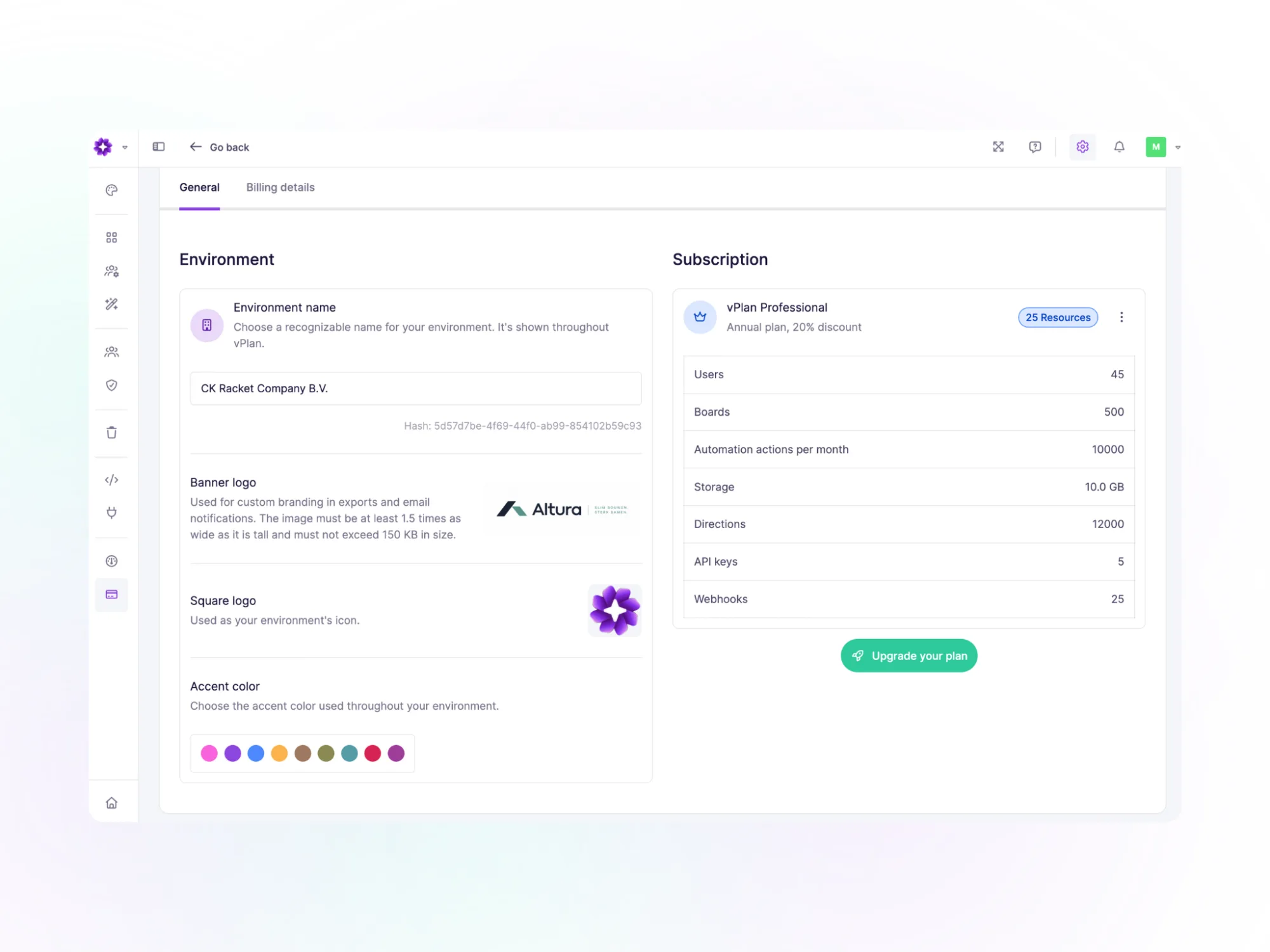
This colour is applied to all users within your environment. Choose a colour from your own brand identity or simply one you like. You can also set your own banner logo here.
This gives vPlan a look that feels more like your organisation.
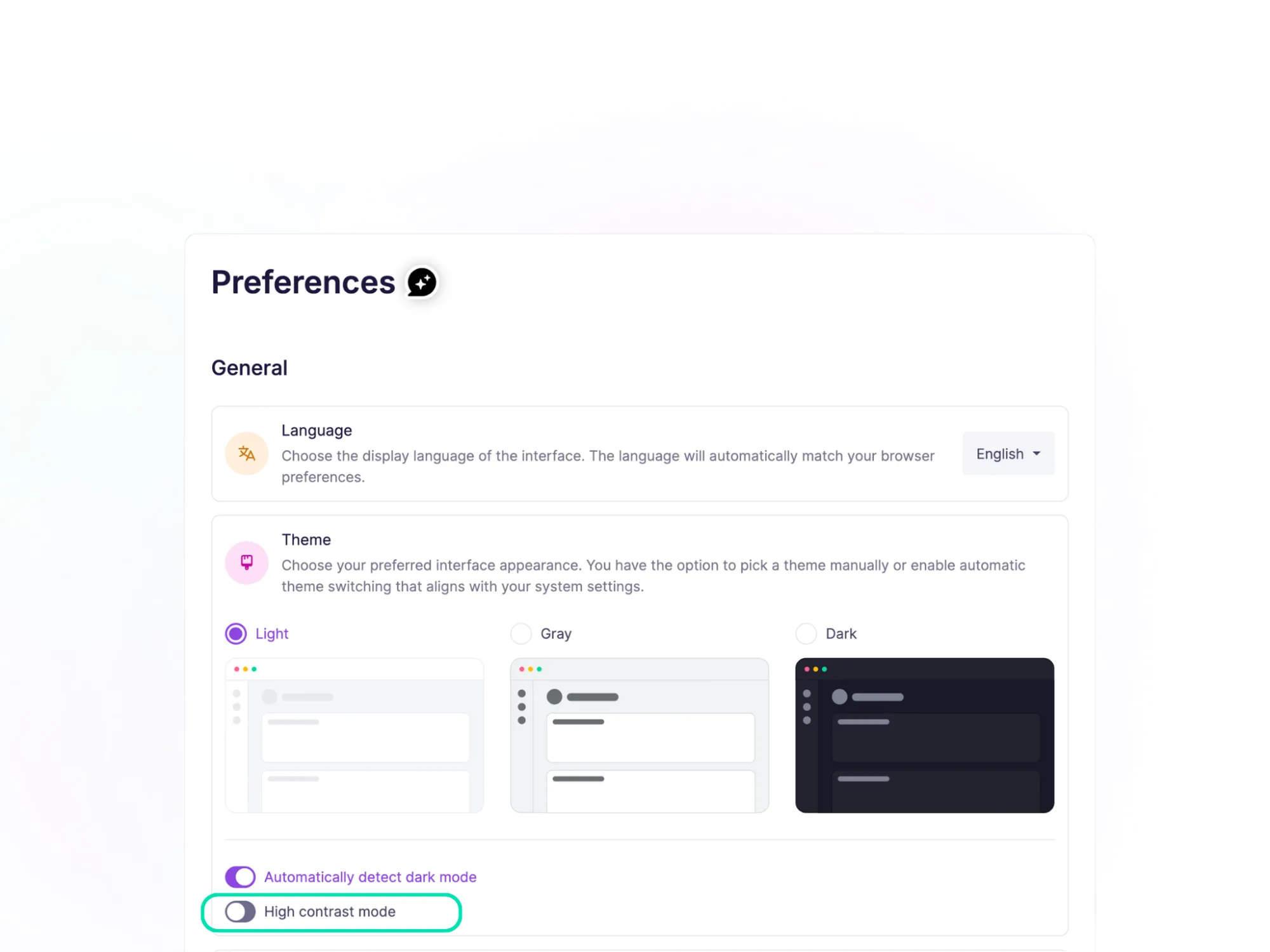
You can also enable high-contrast mode in your preferences for greater contrast and improved readability in vPlan.
Resources always in the same order
We’ve also improved the way resources are sorted within filters.
The order now follows the sequence you’ve set in your planning board settings.
If you’ve deliberately arranged resources in a specific order there, you’ll now see that same order when filtering resources. This makes it even quicker to find the right colleague.
Ready to try it?
All the new features are ready for you. Create your first user team, configure your backlog the way you want or build a workload view that fits your planning process.
Log in to vPlan and discover what’s new.
And as always, we’ll keep improving vPlan. Have feedback or a good idea? Let us know in the community.
Try it in your own vPlan
Every new feature is in the free trial.