Time tracking in Excel: Step-by-step guide
Step 1: Create columns for the relevant information
For a clear and organised time tracking in Excel, start by creating columns. Create columns for the date, day of the week, start time, and end time. Also, add a column for the break time and the net hours worked.This provides a clear foundation. However, manually setting up columns can be time-consuming. Entering data can also quickly become tedious, especially when you need to manage multiple projects or team members.
Step 2: Automatically fill in the day of the week using a formula
To make the overview clearer, you can have Excel automatically fill in the day of the week based on the date.
This can be done using the TEXT function. For example, use =TEXT(A2,"dddd") to display the correct day name alongside the entered date. This makes it easier to see on which day certain hours were worked.
Step 3: Record the start time, end time, and break
The key data for time tracking are the start and end times of your workday. It's also important to note the break time.
Make sure to enter the times in the same format every time. For example, use '08:30' for 8:30 AM. This is a common mistake when tracking time in Excel.
Step 4: Calculate the net hours worked
The net hours worked are the result of the end time minus the start time, minus the break. Excel can easily calculate this for you by entering the formula '=End Time - Start Time - Break'. This will immediately give you an overview of the number of hours worked in a day.
Step 5: Add a column for the hourly wage (optional)
Want to see your earnings right away? Add a column for the hourly wage. Use a formula to calculate the total income. This can be done with the formula '=Net Hours Worked * Hourly Wage'.
This way, you can not only track your hours but also see the financial value of your work. However, the rates may vary by project or employee, making it difficult to keep the data manually. This can lead to errors in your calculations.
Step 6: Create a total row
You can get an overview of the total hours worked or earnings per week or month. To do this, add a sum row at the bottom of the table. Use the formula '=SUM(C2:C8)' to add up all the hours worked.
This provides a quick overview of your performance. However, if there are errors in the data rows, the sum may be incorrect. This can lead to confusion when evaluating your work.
Step 7: Use formatting and colours for clarity
To make the time tracking more organised, you can use colours and formatting. For example, highlight the key columns, such as total hours worked or earnings, with a striking colour.
Step 8: Separate tabs for each week or month
It’s useful to create separate tabs for longer periods, such as weeks or months. This prevents a single tab from becoming too large and cluttered.
It can be extra work to keep the data consistent across tabs. It is also challenging to get a complete overview quickly, as you have to constantly switch between different tabs.
Step 9: Share the Excel file in the cloud
It’s useful to store the Excel file in the cloud, especially if multiple team members need access to the time tracking. You can save the file in services like OneDrive, Google Drive, or SharePoint.
Step 10: Create backups
It’s always a good idea to regularly back up your time tracking data. Excel files can be accidentally deleted or become corrupted.
Setting up time tracking in Excel can be time-consuming and error-prone, especially with larger teams. Fortunately, a tool like vPlan offers a much more efficient solution, making time tracking simple.
So, are you planning to track your team's hours in Excel? Then read on.
Why vPlan works better for time tracking
vPlan is a productivity platform designed to help your business work as efficiently as possible. Excel requires a lot of manual work, while vPlan offers automated processes and allows you to view your time tracking in real time.
Here are the key advantages of vPlan over Excel:
Automatic time tracking
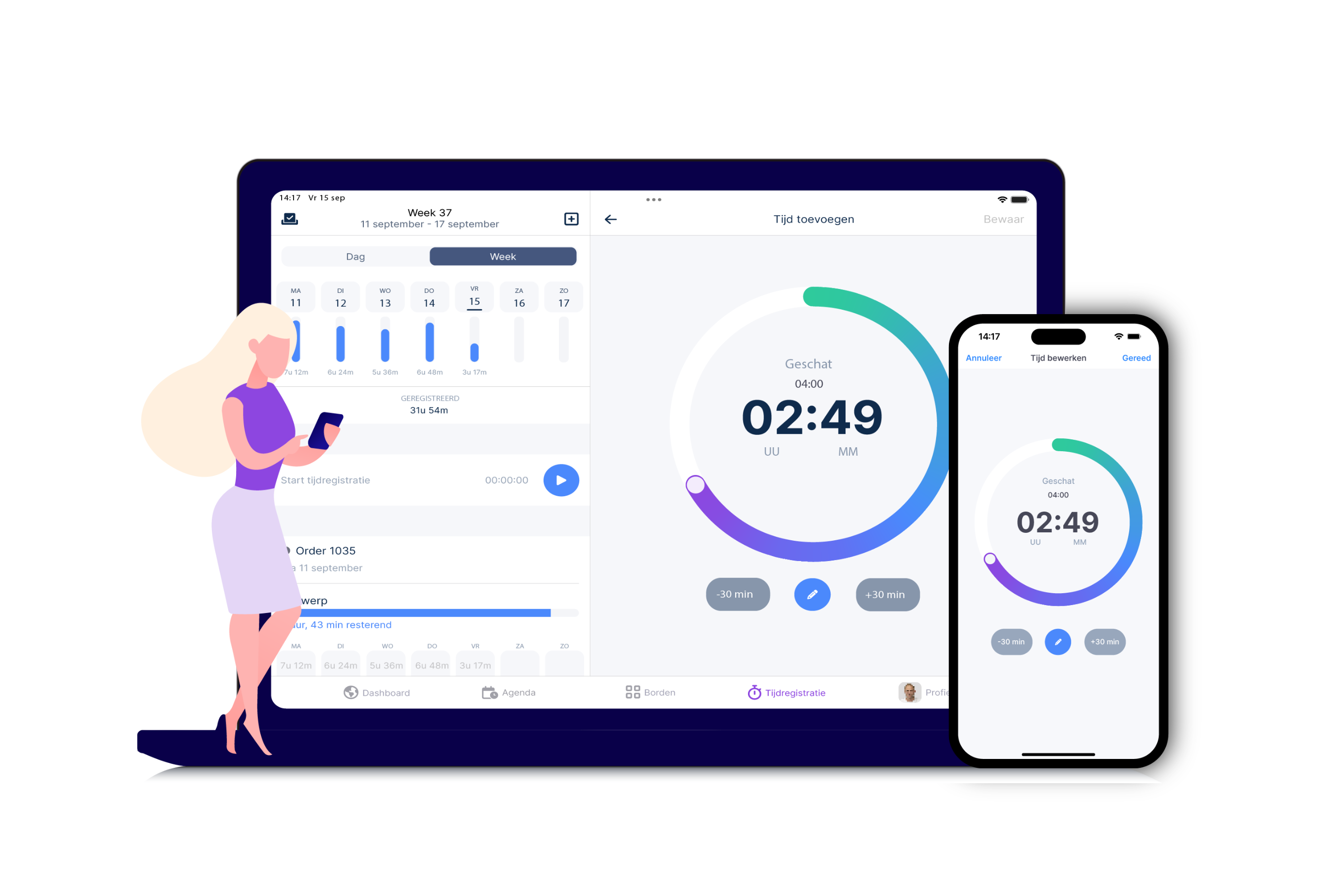
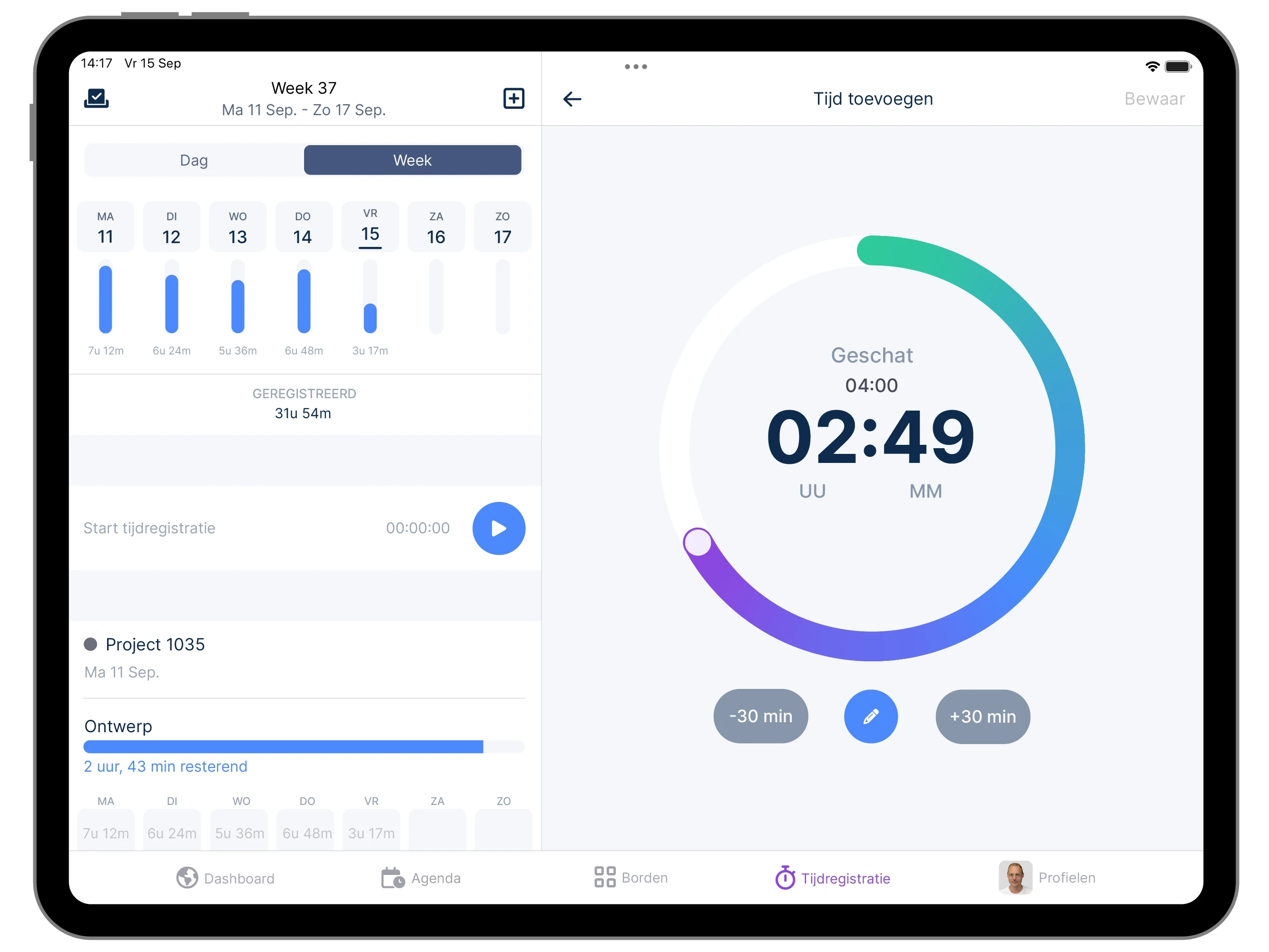
Employees can easily log their worked hours in vPlan, in several ways. They can start and stop a timer, or manually record the time based on duration or time range.
The tool automatically calculates the net hours worked. This prevents common errors, such as incorrect time formats or forgotten formulas.
Error-free and user-friendly
vPlan prevents errors by using clear input fields and visual elements. Employees can easily log their time by selecting an activity and entering the start and end times. This simplifies the process and makes time tracking less burdensome.
Advanced reporting
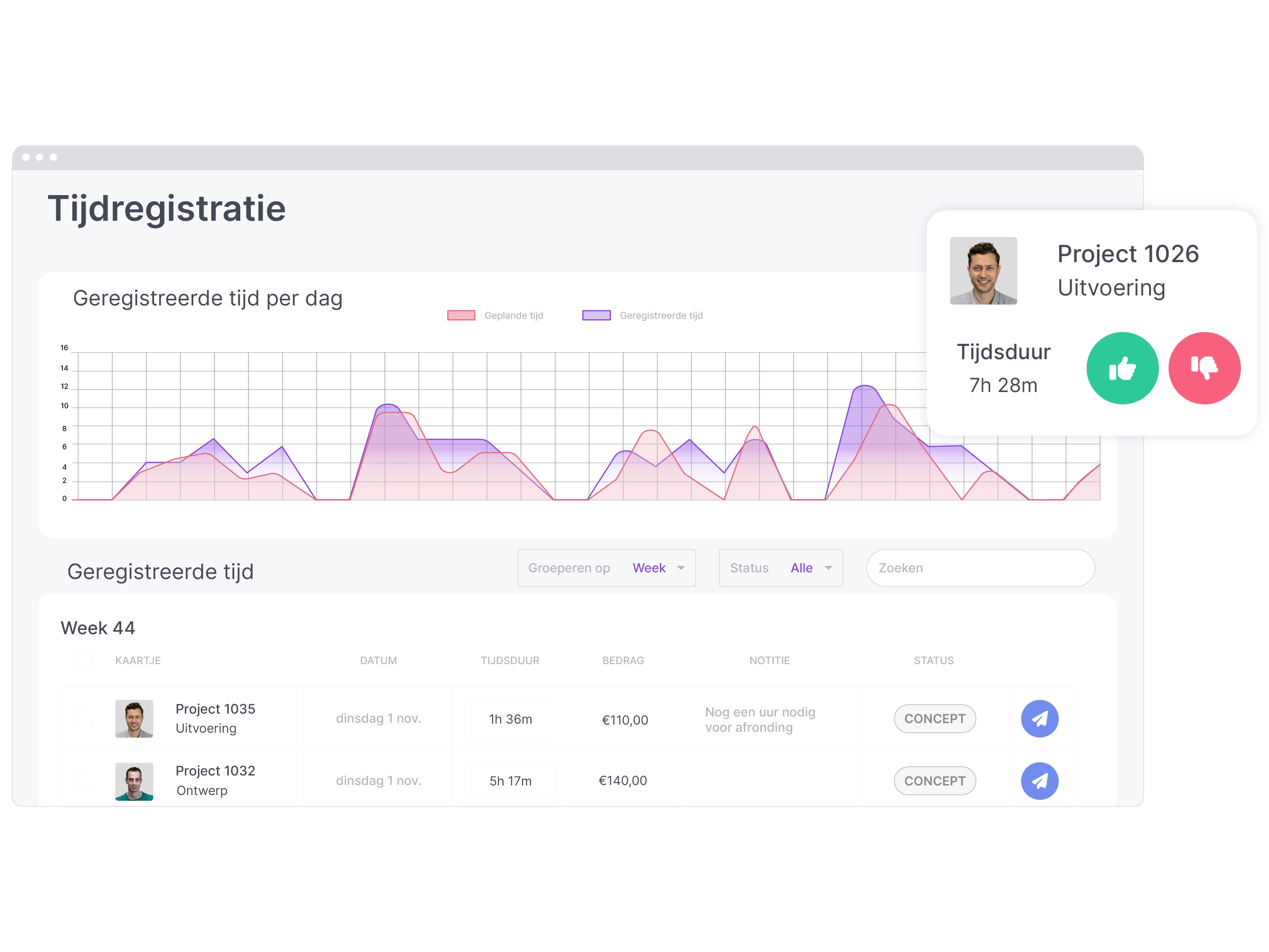
Unlike Excel, in vPlan you can generate detailed reports with just one click. Whether you want to see the number of hours worked per employee, per project, or per month, vPlan provides immediate, detailed insights.
Cloud-based and secure
vPlan is fully cloud-based. You don't have to worry about backups or access for multiple users.
Employees can easily log their hours using the vPlan app. This gives them access to the planning and their time tracking anytime, anywhere. Your data is securely stored and accessible to anyone who needs it.
Integrations
vPlan easily integrates with other tools such as ERP software and accounting packages. This helps connect all your business processes, saving you time and reducing administrative errors. As a result, you get a comprehensive overview of your projects and their associated time allocation.
More than time tracking
vPlan is not just a tool for time tracking. It's your platform for planning and organizing all your work!
With vPlan, you can easily assign tasks and manage deadlines. You can also track the progress of projects, all in one place. In short, it's the place to collaborate with your team.
Make time tracking simple and efficient
Time tracking in Excel? Fine for a solo task, but when you're working in a team, it can quickly become chaotic! Manual entries, incorrect formulas, and the risk of errors. You don’t want that, right?
With vPlan, time tracking becomes much easier. You effortlessly track your hours, collaborate in one clear planning, and ensure your earnings don’t go up in smoke.
Give vPlan a try and discover how you can work more productively.

Work at vPlan
We are looking for new colleagues.