Smoothly Transitioning to vPlan: Tips for Successful Implementation
Making the switch to vPlan can be a major step forward for companies looking to plan and collaborate more efficiently. But how do you ensure that vPlan is successfully implemented and embraced in the workplace? In this blog, we share tips and tools to make the rollout smooth and effective.
1. Involve Your Team from the Start
Introducing a new tool like vPlan requires team engagement. By involving your employees from the very beginning, you increase the chances of success. Take your time—it's important to give everyone enough time to get familiar with the new way of working.
- Communicate the benefits: Explain how vPlan will make their work easier, such as reducing errors, improving visibility, and saving time.
- Ask for input: Let your team contribute to the setup of vPlan. The more their needs and preferences are taken into account, the faster they will embrace the tool.
2. Prepare with a Clear Plan
A well-thought-out plan lays the foundation for a smooth rollout:
- Define your goals: How do you want to implement planning on the work floor? What improvements do you aim to achieve with vPlan? For example, less paperwork, better planning insights, or faster communication.
- Set roles and permissions: Clearly define roles and permissions. vPlan offers five different roles. For instance, you can configure that employees can only view the schedule and edit certain data, while freelancers can only view their own tasks.
- Optimise views: Think about the right filters, such as date ranges, stages, or roles, so employees can quickly access relevant data.
3. Introduce vPlan Step by Step
Rather than making all changes at once, roll out vPlan gradually in the workplace:
- Pilot testing: Start with a small team or project to test vPlan. Transfer the current planning to vPlan, gather feedback, and optimise the process.
- Phased implementation: Roll out vPlan step by step to other departments or processes.
- Full adoption: Ensure everyone is informed about the transition and has access to vPlan.
Tip: Form a test group to identify and resolve potential bottlenecks before implementing vPlan company-wide. Explore our videos, blogs, and support articles for further insights into vPlan's capabilities.
4. Use the Right Tools
vPlan can be used in a variety of ways in the workplace. Based on best practices from our customers, here are some practical applications:
Desktop Version 🖥️
The desktop version is ideal for managing and viewing schedules in the workplace.
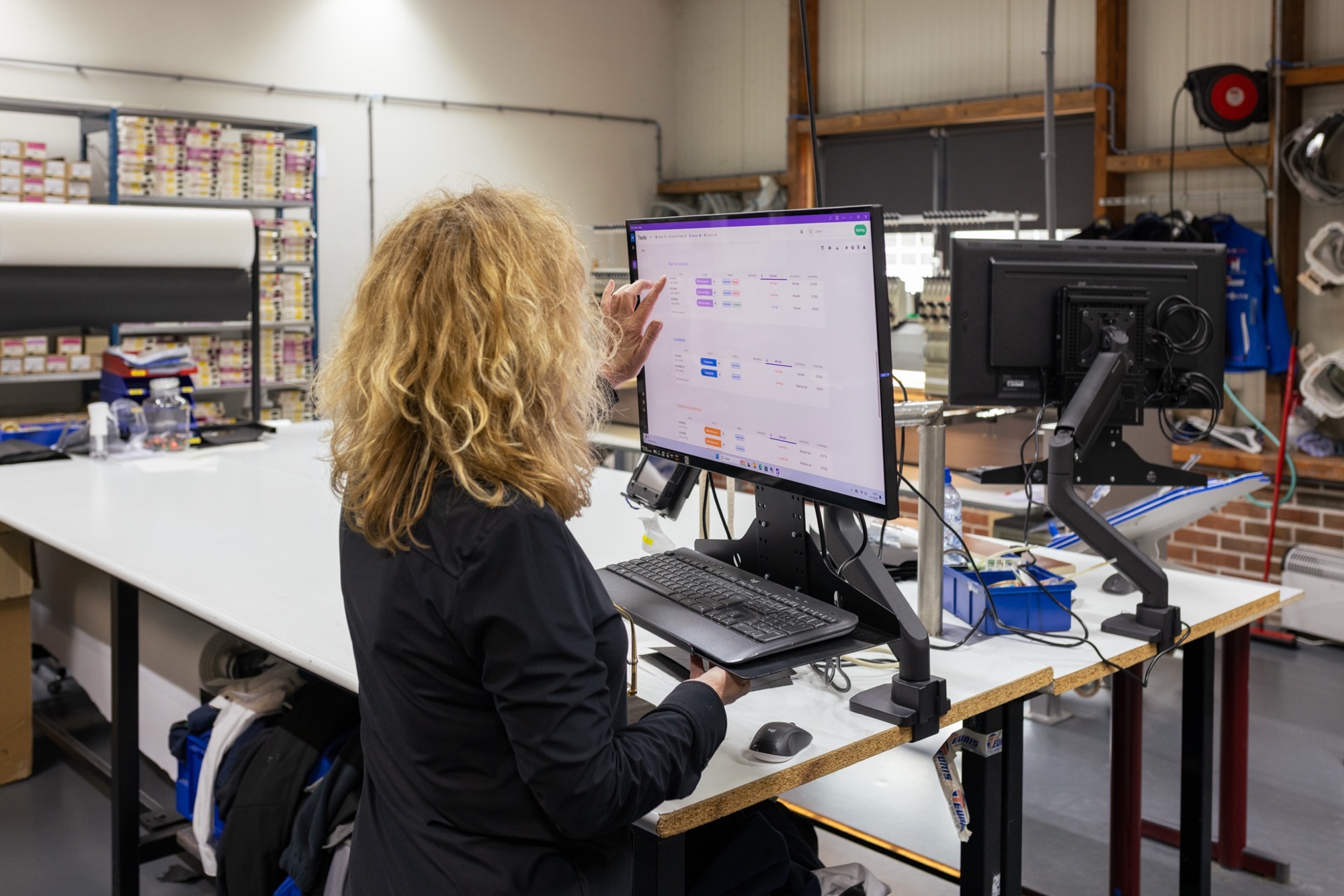
- Shared views: As a planner, set up views for the workplace in advance. This saves time during the rollout. You can configure these views and then share them with the team.
- Screen display: Show the schedule on a monitor, large screen, or TV connected to a computer. This provides a clear overview of the daily schedule for everyone. The bigger the screen, the more details are visible. Perfect for team meetings and collaboration. With touchscreen TVs, you can scroll through the schedule or make updates directly.
- Set filters: Use filters to display only relevant information, such as date ranges, stages, or tasks per employee.
- Real-time updates: Employees can easily change statuses, add comments, and even log hours via the desktop version.
Did you know? There’s also an app for the web application, making it even easier to access your schedule.
Tip: Carefully consider the placement of screens and computers so employees can work efficiently without unnecessary movement.
vPlan App 📱
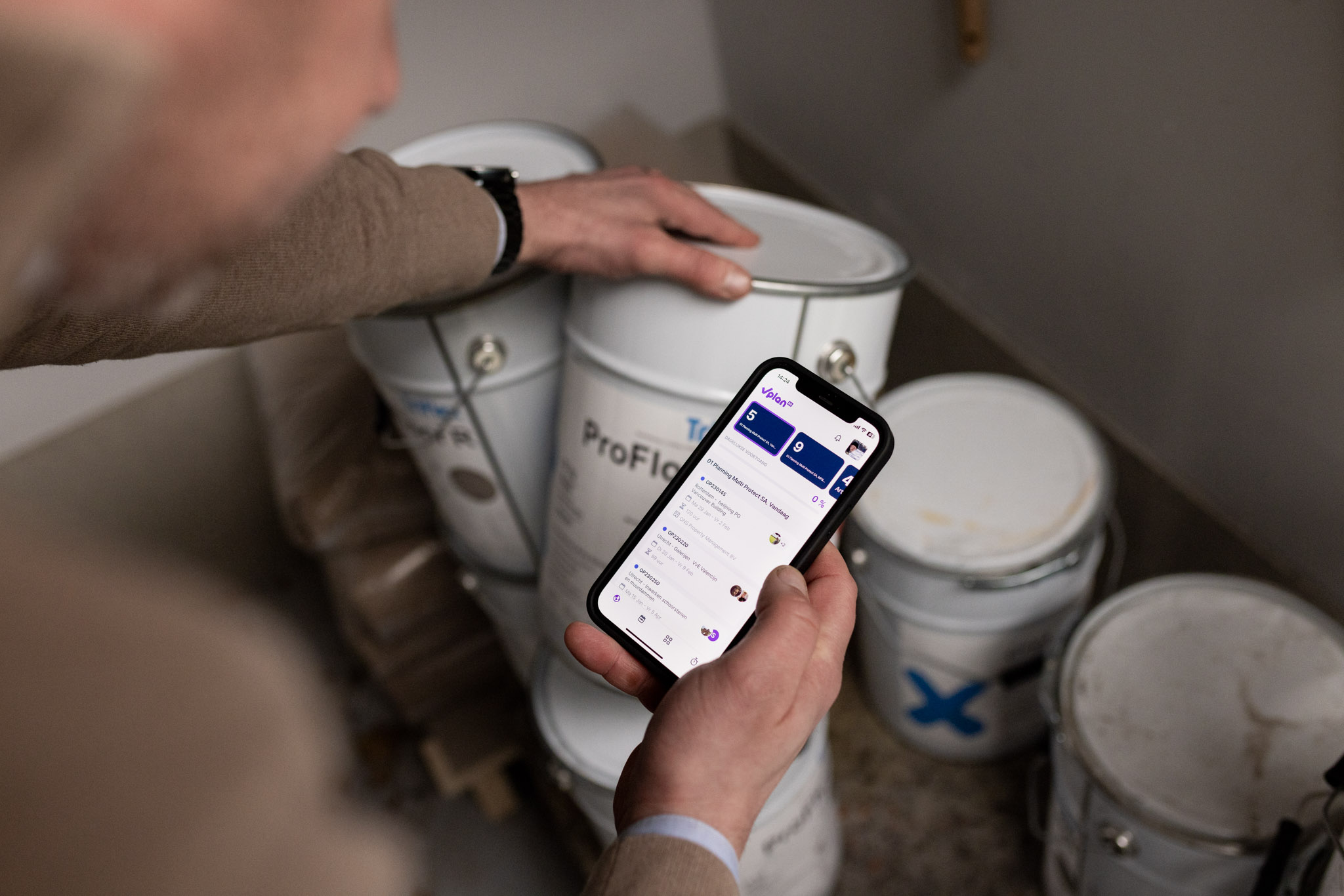
The vPlan app is available for Android and Apple devices. Employees can view schedules on their tablets or phones, wherever they are. Configure the app with filters right from the start of vPlan’s implementation to ensure users only see what’s relevant to them.

- Real-time planning: Employees can immediately see what they need to do via a clear dashboard with open tasks. You can also communicate directly and keep everyone updated on task statuses.
- Flexibility: Customise the dashboard with widgets so employees can quickly access relevant information. You can also choose which fields appear on a card through the card settings.
- Tablet access: Employees can each have their own tablet, or a single tablet can be shared with the ability to switch between profiles easily.
- Task execution: Through the app, employees can update statuses, communicate, log hours, and even add photos to tasks.
Automation Tip: Use the stopwatch function for logging hours. Set it up so the stopwatch for a previous task stops automatically when a new one starts. This prevents errors and saves time.
Extra Features 📋
In addition to standard features, vPlan partners offer extra tools to make your workplace even more efficient. For example:
- Add forms for tasks like measurements or quality checks.
- Integrate vPlan with handheld scanners and zebra printers to further digitise your workflows.
5. Measure and Optimise
Implementation doesn’t stop at rollout. It’s important to continuously evaluate:
- Monitor progress: Regularly analyse how vPlan is being used and whether it’s delivering the desired results.
- Collect feedback: Organise regular feedback sessions with employees. Use their input to make further improvements.
- Make adjustments: Optimise vPlan’s setup to better meet your team’s needs.
6. Celebrate Successes
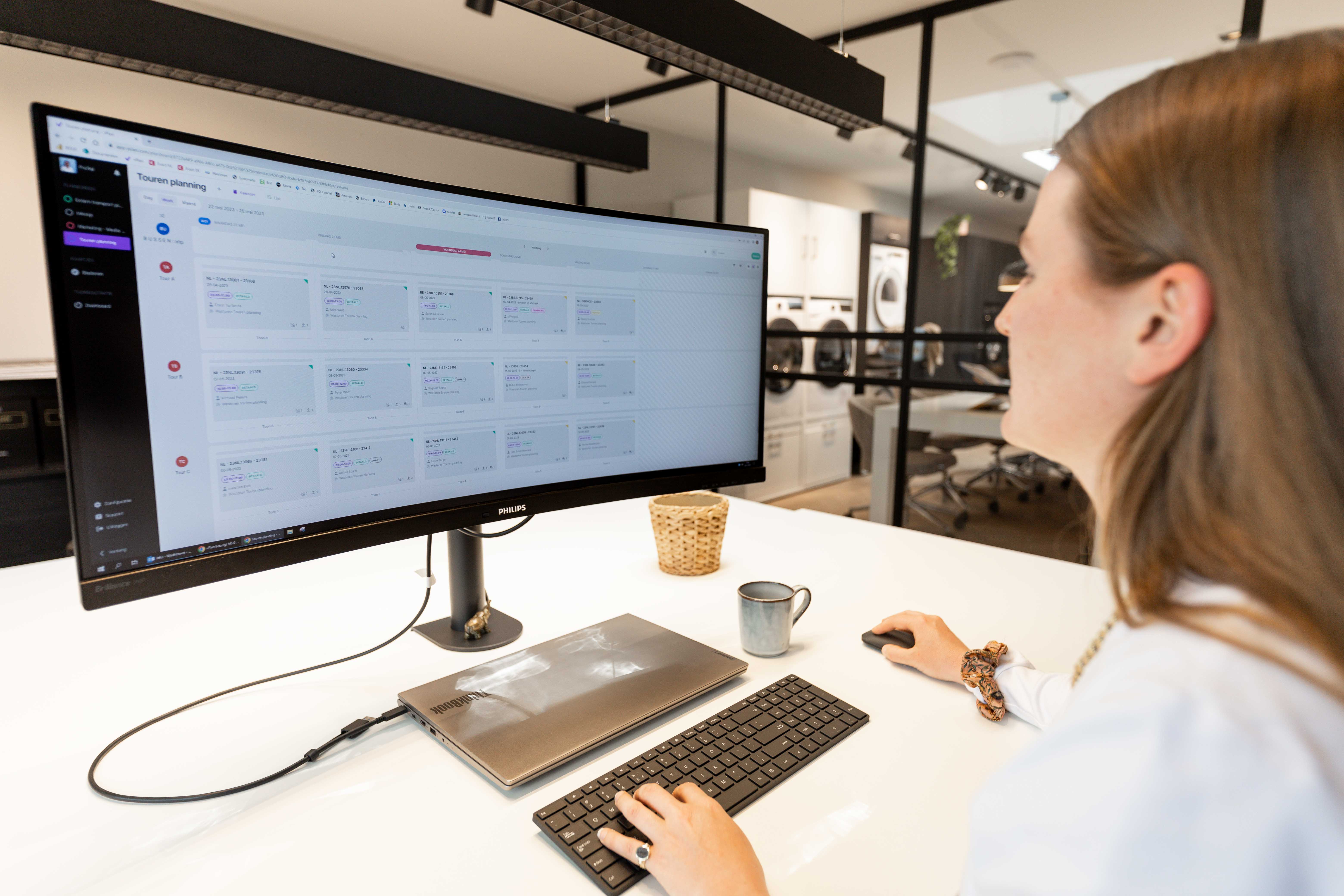
Don’t forget to celebrate successes! 🥳 Highlight how vPlan improves planning, saves time, or prevents errors. This motivates your team to keep using the tool.
Conclusion
Implementing vPlan in the workplace requires proper preparation, team involvement, and the right tools. By taking a step-by-step approach and clearly communicating vPlan’s benefits, you ensure a successful rollout and adoption.

Work at vPlan
We are looking for new colleagues.